
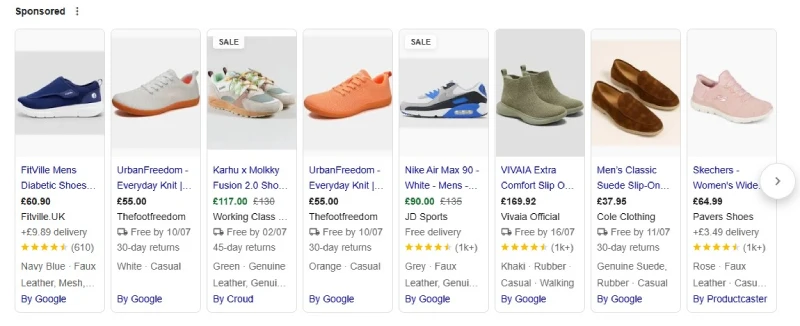
Ever see that eye-catching ‘Sale’ badge on a competitor’s Google Shopping ad and wonder, “Why don’t my products have that?” You’ve set up a sale, lowered your price, but the badge never appears. It’s a common and frustrating problem for many e-commerce businesses.
That small badge is a powerful tool. It grabs user attention, communicates value instantly, and can significantly increase your Click-Through Rate (CTR). Getting it to show up, however, isn’t as simple as flicking a switch.
Based on my experience helping clients with this exact issue, the most common culprit is a misunderstanding of Google’s base price stability rule. Let’s break down how this works so you can get your sales the visibility they deserve.
First, The Essentials: Feed Requirements
Before we dive into the main problem, you need to have the basics right in your Google Merchant Center product feed. For a sale to be eligible, you must:
- Submit Both Prices: Your feed must contain your original price in the price attribute and your new, lower price in the sale_price attribute.
- Ensure a Real Discount: The sale_price must be lower than the price.
- Offer a Meaningful Discount: The discount must be greater than 5% but less than 90% of the base price.
- Match Your Landing Page: Both the original and sale prices should be clearly displayed on the product’s landing page.
If you’ve checked all these boxes and the badge still isn’t showing, the problem almost certainly lies with your base price history.
Have a Stable Base Price
Google needs to be confident that your sale is genuine and not a marketing gimmick. To do this, it verifies that your original price was a real, stable price for a reasonable amount of time before the sale began.
This “stability rule” has slightly different requirements depending on the country you are targeting:
- For the USA: Your product’s base price must have been charged for at least 5 days within the past 30 days (or 15 days within the past 200) before the sale price is active.
- For Most Other Countries: The base price must have been valid for at least 30 days within the past 200 days.
It’s important to note that these days do not need to be consecutive. However, if your price fluctuates frequently, Google’s system will struggle to establish a trustworthy base price.
Common Scenarios Where the Badge Fails
- The Last-Minute Price Hike: You increase your base
pricejust a few days before a sale to make the discount look bigger. Google will see this and won’t show the badge. - The Price-Matching Fluctuation: You are in a competitive market and change your prices weekly to match competitors. This lack of stability prevents Google from locking in a reliable base price.
- The New Product Launch: You launch a new product with an introductory discount. Since the product has no price history, the
sale_priceattribute won’t trigger the badge.
The Strategic Alternative: When to Use Google Merchant Center "Promotions"
So, what do you do if you can’t meet the base price stability rule? Don’t worry, there’s a fantastic alternative: the Promotions feature in Merchant Center.
Using this feature allows you to create a “Special offer” link or annotation on your listing. This is the perfect solution for:
-
New product launch sales.
-
Businesses that need to change prices frequently.
-
Sitewide sales (e.g., “20% off all orders”).
While it looks different from the ‘Sale’ badge, it’s still a highly effective way to communicate a discount to potential customers.
Conclusion: Be Strategic With Your Sales
Getting the ‘Sale’ badge to appear on Google Shopping is less about a single setting and more about a consistent pricing strategy. For the automatic badge, price stability is key. For flexibility and special circumstances, the ‘Promotions’ feature is your best friend.
Take a look at your pricing strategy and your product feed setup. By understanding these rules, you can ensure your next sales promotion gets the attention it deserves.