
First Steps – Giving Access to your Google ads Account
When you want somebody else to manage your Google Ads account the first thing you will need to do is give them access. There are two ways to do that.
- Add them as a user to your account
- Approve a management request
Whether you choose the first or the second option depends on your situation.
Scenario 1: You have decided to work with an agency or a contractor. In 99% of the cases they will have a special Manager account which is designed to manage the accounts of clients. If you are in this situation please follow the instructions on how to Approve a Management Request.
Scenario 2: You want to give access to an employee or a person who does not have a Manager’s account. If you are in this situation please follow the instructions on how to Add a User to Google Ads.
Scenario 3: You are currently communicating with an agency or a contractor/consultant. You want to let them take a look at the account but do not want to allow them to make any changes before you are sure you want to work with them. If you are in this situation please follow the instructions on how to Add a User to Google Ads.
How to add a Google Ads user?
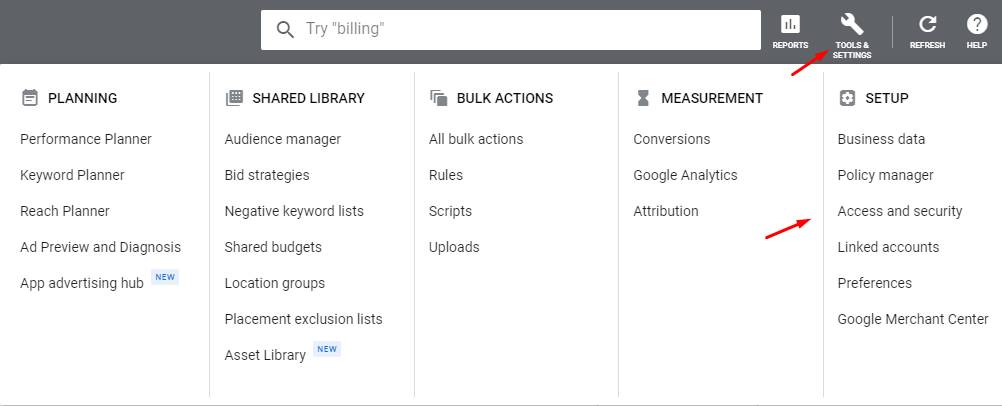
Log in your Google Ads account and click on Tools and Settings, followed by Access and Security
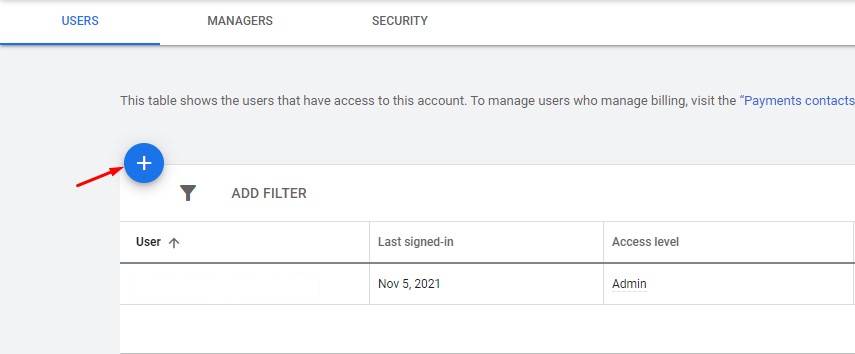
After that you will be presented with a page where you can add a new user. Click the big blue plus and proceed.
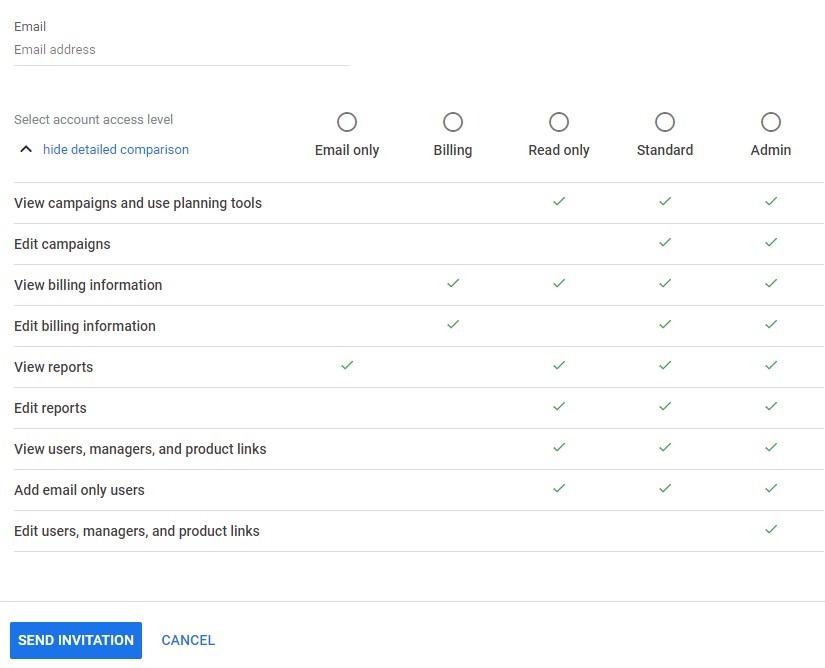
On the next screen you will have the option to enter the person’s email address and access level. Make your desired selection and click Send Invitation. You are done. The person you are inviting will receive an email and will need to accept the invitation.
Approve a management request
Log in your account and on the right corner you will see your account ID number. Copy it and send it over to the agency or contractor.

They will send a request to manage your account for you. You will receive an email and a notification directly in your account. Accept the request and you are done.